
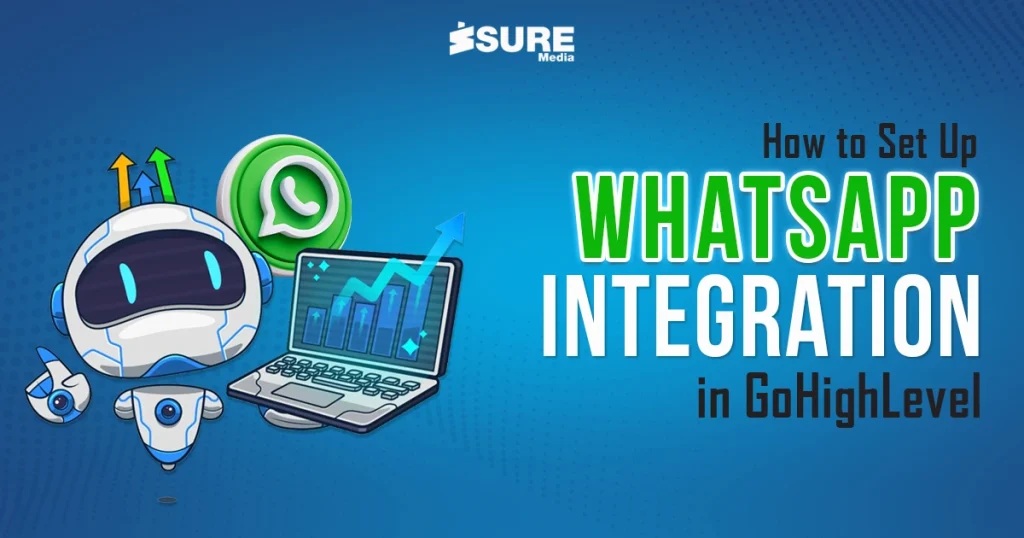
GoHighLevel is one of the automation innovations that has revolutionized communication across businesses. One of the most valuable innovations it has introduced in the cycle of GoHighlevel is the function of WhatsApp Integration.
Since its inception, the function has been successful in automating responses and enhancing the speed of lead conversion. WhatsApp is an application used by more than 2 Billion people worldwide.
Most business owners, agencies, and influencers use it for their daily tasks. If you can get into the WhatsApp automation for your business, then you can target those audiences with ease.
That is why GoHighLevel came up with the feature of WhatsApp integration. Let’s see how to set up the WhatsApp integration option in GoHighLevel.
Table of Content
Introduction
Ways to Set Up WhatsApp Integration in GoHighLevel
– Access GoHighLevel Settings and Integrations
– Verify Business Phone Number and Connect to WhatsApp
– Finish WhatsApp Business API Setup
– Set Up Templates and Automate Workflows
– Enable Two-Way Messaging and Customize Chat– Mentors
– Test and Activate WhatsApp Integration
Conclusion
Ways to Set Up WhatsApp Integration in GoHighLevel
Following are some of the common ways through which you can set up integration in GHL with some simple steps.
1. Access GoHighLevel Settings and Integrations
You’ll have to log into your account, then you must go to Settings and click on the integrations button. Then, find “WhatsApp” and then click on it to start the process.
This will be the first and foremost step in integrating WhatsApp with your GoHighLevel account.
2. Verify Business Phone Number and Connect to WhatsApp
Before diving right into the process of connecting your WhatsApp with your business, you’ll need to verify your business phone number with WhatsApp. Make sure the number is active and associated with your business and follow these steps:
- Enter the number that you want to connect with WhatsApp.
- Choose the verification method to receive the confirmation code sent by WhatsApp
- Now enter the code in the current window space to finish the verification process.
3.Finish WhatsApp Business API Setup
For WhatsApp integration usage, you need access to the WhatsApp Business API. You can get your business registered with Meta’s WhatsApp business manager to get more functionalities in your business. You can add your name, profile, and other business profile details to finish the API setup.
After approval, get API credentials like Client ID, Secret Key, and Webhook URL. These credentials will be utilized for WhatsApp and GoHighLevel connection.
4.Set Up Templates and Automate Workflows
After integrating WhatsApp, you can set up new message templates for new automated messages. These will come in handy when a lead comes up in the platform and you are not available at the moment. The workflow will take care of it.
To automate the workflow, you can navigate to automation in GHL, design a new workflow, and then save and activate it.
5.Enable Two-Way Messaging and Customize Chat
You can also enable two-way messaging in GHL to have smooth communication with customers in real time. This feature allows businesses to respond to customer questions, follow up on leads, and offer support directly in GoHighLevel.
6.Test and Activate WhatsApp Integration
Before launching the WhatsApp integration system you set up, test the system. See if the configuration done by you is done correctly. Also, check the configuration of the setup, check how it responds to messages, and how well the conversation goes.
After the successful integration and testing, your system is ready to roll and you can use it to have better conversations in your business.
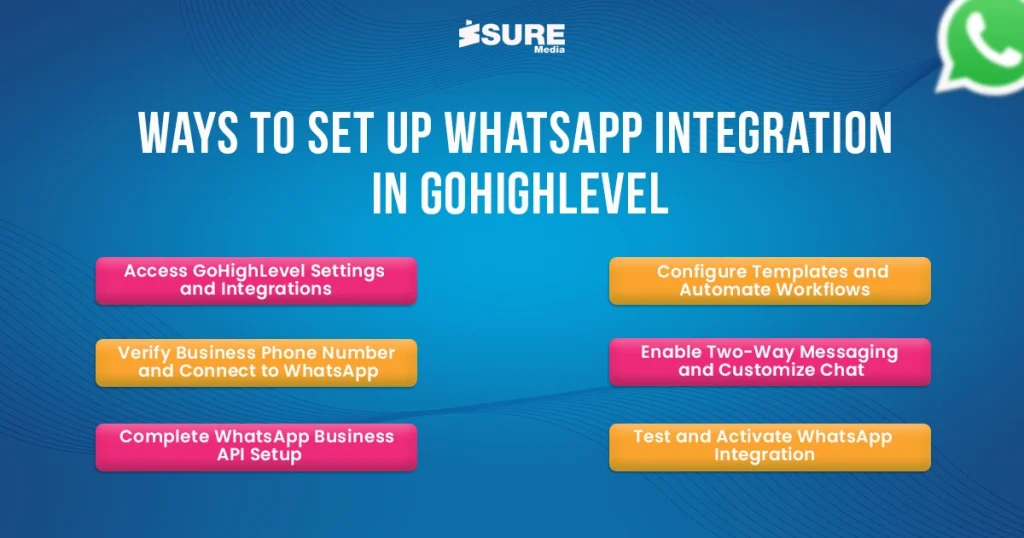
Here’s a quick recap on the ways to integrate WhatsApp in GoHighLevel.
Conclusion
Overall, the process of WhatsApp integration is not as technical and tough as you might think. It is one of the most important yet easiest parts of the GoHighLevel Setup and it can help you manage leads and messages in your business.
If you haven’t yet integrated WhatsApp in GoHighLevel, now is the best time to do it and take your customer communication to the next level.
For more assistance and GHL-related services, you can connect us.
For more information and digital business support, you can contact us on our social media handles